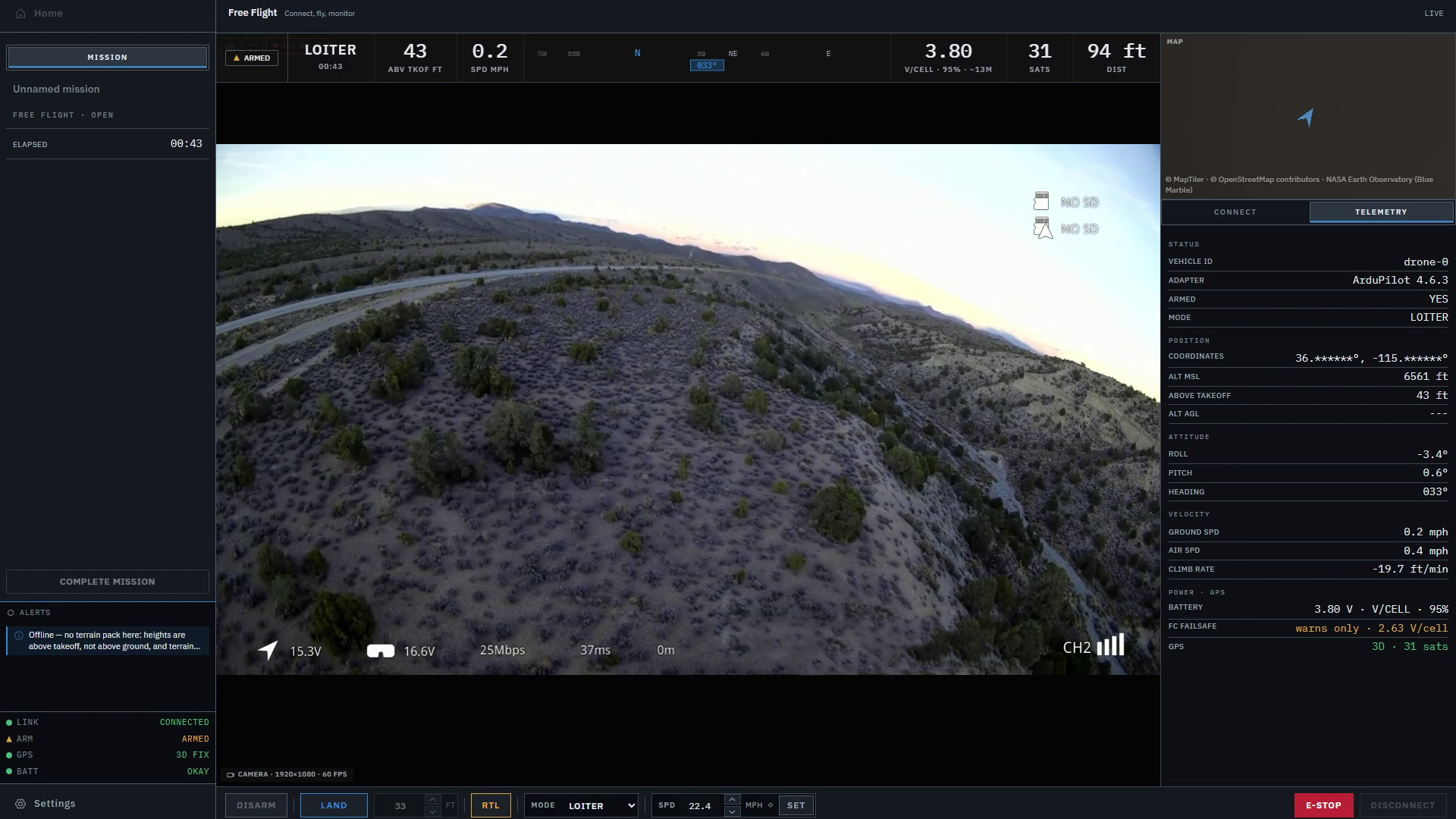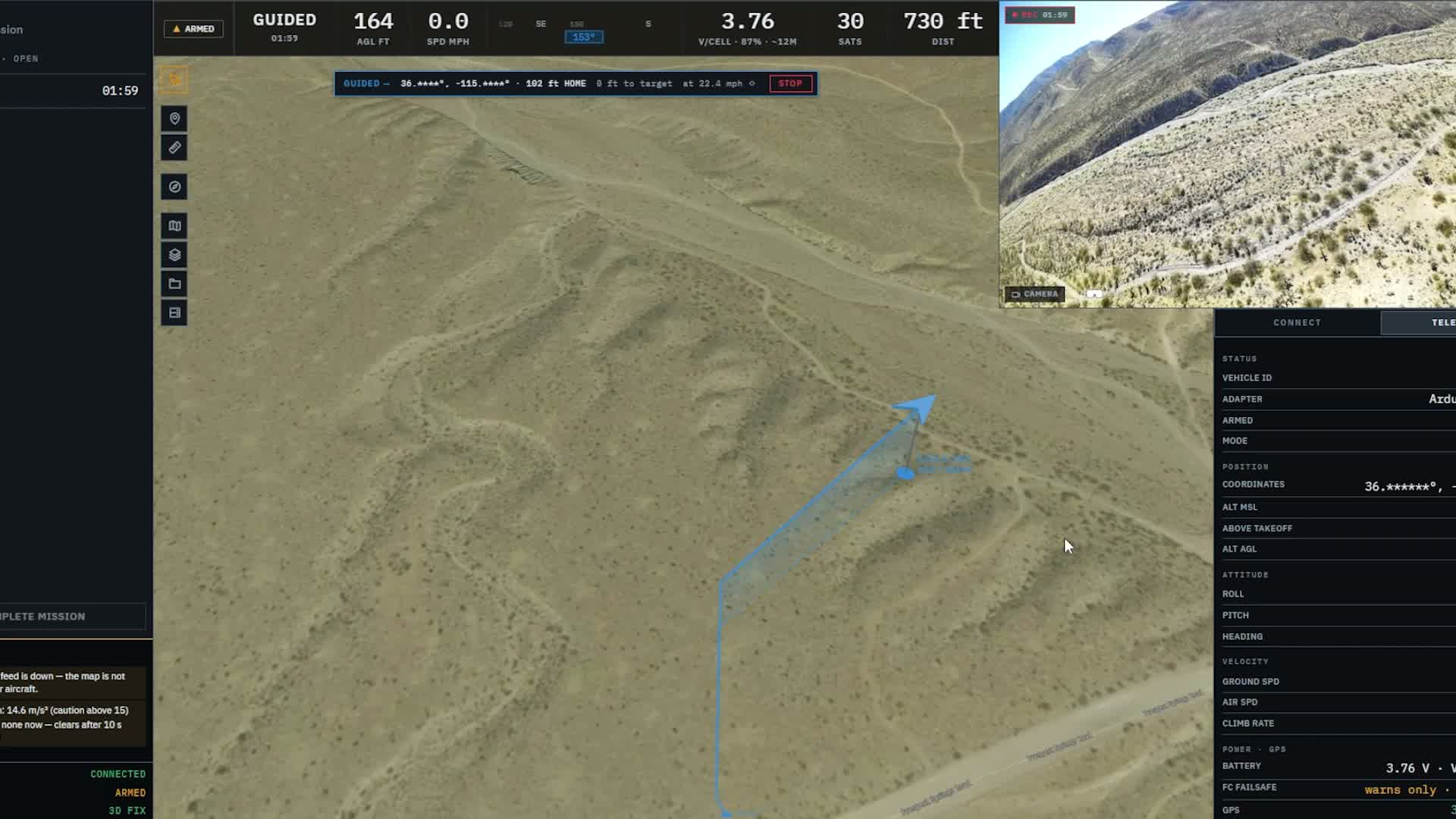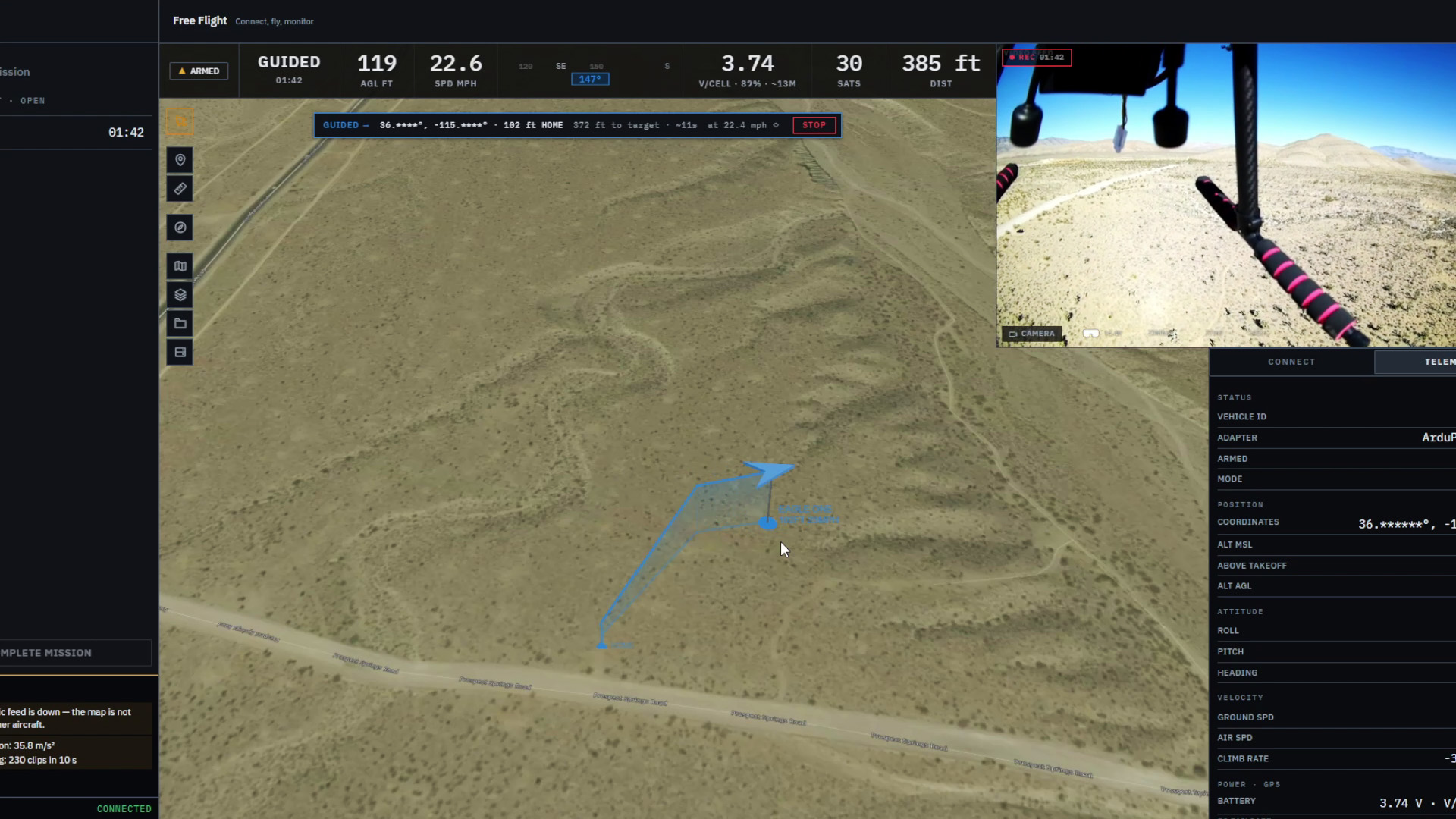
A ground station can get crowded in a hurry. You open Layers to check the map, bring up the logs to look at a message, then need something from the Library. Before long, you’re deciding what to close just to see what you were working on.
We want that part to feel easier. You should be able to put the information you need somewhere sensible, leave it there and get on with the flight.
That’s the idea behind Beta 0.2.3. Windows can now float across the workspace, dock into either side bar or tuck away when you don’t need them. Once you’ve found an arrangement you like, you can save it and bring it back later.
It’s also a good point to catch up on Markhor 0.2 as a whole. This series has involved a lot of attention to the things you touch over and over: moving around the map, entering a command, checking a warning and finding your way back to what you were doing.
Catching up on 0.2
The early work focused on flight controls and making the aircraft’s behavior easier to follow. The POWER card gained the aircraft’s low-battery action and threshold, so you can see what it’s configured to do alongside the battery readings. If the autopilot restarts, the main workspace now explains what happened.
Guided speed also carries across a reconnect to the same aircraft, and the speed box shows when a value hasn’t been sent. Typing a number and sending it are two different steps. The screen needs to make that difference obvious.
The 0.2.1 repair pass tightened up command behavior. Set Home is blocked while the aircraft is armed, and changing altitude is unavailable on the ground. We also worked through fixes to alerts and connection handling. There’s plenty of less visible work in a release like this; clearer messages and more predictable controls deserve the time too.
Then 0.2.2 brought a round of map improvements. View controls take you back to north, the aircraft or home. Follow keeps the aircraft in view, coordinate entry takes you to a known position, and saved views let you return to an area without finding it again by hand.
If you’ve spent time getting a map to just the right angle, you’ll understand the appeal of that last one. It’s a small convenience we’d like you to be able to take for granted.
Room to work
The main change in 0.2.3 is that Layers, Library, Offline and the other windows have more freedom to move. They can sit over the map and both side bars, and the window you click comes to the front.
You might only need the logs for a quick look, so a floating window makes sense. Something you keep returning to can live in a side bar instead: drop it onto the tab strip to dock it, then use Float if you want it back out. The left bar keeps MISSION as its first tab.
The side bars can be widened, and windows snap to the edges and to each other. Hold Shift when you want to place one freely. You can minimize a window to a chip in the top bar, or roll it up with a double-click on its title. The WINDOW menu gives you one place to open, position and close them.
Once things are where you want them, you can save the layout under a name. That saves you from arranging the same windows again every time you switch tasks. Each restart still begins from BASE; choose a saved layout when you’re ready to use it.
There doesn’t need to be one perfect arrangement for every job. We’d rather give you a few straightforward ways to make the space comfortable to work in.
Some things need to stay in front
Moving windows around is useful, but the flight controls need a dependable place in all of that.
While the aircraft is armed, a maximized window stops above the command bar. New cautions and warnings bring ALERTS to the front until acknowledged, and the STOP box stays above windows. E-STOP remains reachable under Settings, the palette and dialogs.
While disarmed, a maximized window can fill the screen. ARM and TAKEOFF wait until you restore it, so you return to the flight controls before continuing.
We’ve also made Escape more consistent. It closes the top item first, one thing at a time, while pinned windows stay put. Single-letter flight shortcuts do nothing in window titles, tabs or windows. On smaller screens, several banners now share a notice row, giving a little space back to the map.
These are the rules you shouldn’t have to keep thinking about while using the app. Open something, finish with it, close it, and know where you are.
Four preview builds went through checks for this update. The last two passed every check run, and we also completed simulator flight tests.
Where we’re headed
There’s still work to do in 0.2. Next is a repair pass based on the most recent real flight, followed by more attention to the map tools:
- 0.2.4: repairs from the latest real flight.
- 0.2.5: rebuild the on-map toolbar.
- 0.2.6: rework offline maps.
- 0.2.7: work on the measuring tools.
Then comes 0.3.0, where the focus moves to planning a route, sending it to the aircraft and following the flight. Getting the everyday workspace into better shape is part of preparing for that work. A plan will need room on the map, useful checks before it’s sent and a clear way to follow what happens once the aircraft is flying it.
Further ahead, we’re building toward search and field operations: connecting the flight with what the camera sees and what the team on the ground needs to know. Those capabilities remain planned. For now, we’re working through the pieces that make the software easier to use day to day, with that larger job in mind.
Markhor is in active development and is not yet available outside Lechuza.The Beta 0.2.3 release notes cover the individual changes. The roadmap shows the work still ahead.