A drone flight log is a recording of information from a flight. Depending on where and how it was recorded, it can contain aircraft positions, altitude and speed readings, flight modes, battery information, sensor measurements and messages about what the system was doing.
That becomes useful surprisingly quickly. You land after a flight that mostly went as expected, but there was a moment when the aircraft seemed to slow down. Or a warning appeared, then disappeared before you had time to read it properly. You remember roughly where it happened. The details are already getting a little slippery.
A log gives you something to come back to. You can follow the recorded information at your own pace, compare readings and put events in order. It won’t answer every question, but it gives you a much better starting point than trying to remember which number changed first.
The first question is fairly simple. Which part of the system made the recording?
One flight can leave more than one record
The aircraft and the ground station can both record information. They are watching the same flight from different places, with different information available to them.
| Record | Where it comes from |
|---|---|
| Onboard flight log | Recorded by the autopilot, often to storage on the aircraft |
| Ground station telemetry log | Recorded by software on the ground from messages carried over the aircraft connection |
ArduPilot’s introduction to flight logs calls these Dataflash logs and telemetry logs, or Tlogs. That distinction matters more than the filenames at first. One record is made onboard. The other depends on what reaches the recording software on the ground.
Imagine the telemetry connection drops for a few seconds. The aircraft may continue recording onboard while the ground station has no new aircraft messages to save. After landing, the two files can therefore tell different amounts of the story around the same moment.
People also use “flight log” to mean a pilot’s logbook or an app’s flight summary. A record of the aircraft, date, duration and pilot is useful, but it serves a different purpose from a file containing individual measurements. A flight total won’t tell you how the reported speed changed during a particular turn.
Making sense of the filenames
With ArduPilot, you’ll commonly encounter onboard logs with a .bin extension and ground station telemetry recordings with a .tlog extension. Mission Planner’s telemetry log guide describes recording and playing back Tlogs, including graphing the values they contain.
Other flight software uses other formats. PX4 uses ULog, commonly seen as .ulg files, for recordings that can include sensor inputs, internal estimates and system messages. A PX4 onboard log and an ArduPilot BIN file aren’t the same format just because both were recorded on an aircraft.
The extension helps you choose a tool that can open the file. It doesn’t establish that the flight is complete, that every useful field is present or that two logs contain the same information. Those questions take a little more looking.
What the recording can tell you
A useful first pass follows the broad shape of the flight. When did the aircraft arm? Which modes were reported? Where did it travel, and how did the altitude and speed change along the way?
From there, you can look at the part that caught your attention. Battery readings might help explain when a warning appeared. Reported attitude can help you follow how the aircraft tilted through a maneuver. Onboard sensor and controller information may let a more experienced reviewer investigate behavior that wasn’t obvious on the flight display.
ArduPilot’s guide to diagnosing problems with logs gives examples involving vibration, compass interference and positioning problems. The available evidence depends on the messages that were recorded. Opening a file doesn’t guarantee that the measurement you need is in it.
The labels still matter after landing. Groundspeed and airspeed describe different things. A measured or estimated altitude needs a reference, and a target value describes what the aircraft was being asked to reach. Our guide to AGL, MSL and height above home explains why two altitude readings can disagree without either being broken.
Plotting two values next to each other is useful once you know what each one means. Otherwise, a very tidy graph can make the wrong comparison look convincing.
Following one moment through the flight
Let’s use a made-up example. You ask an aircraft to climb from 40 to 60 meters above home. On screen, the new target appears and a command response comes back. A little later, you notice that the aircraft hasn’t reached the height you expected.
During review, it helps to separate the request, the reply and the aircraft’s response. If your recordings contain them, look for when the request was sent, what response was recorded, which flight mode followed and how the reported altitude and vertical speed changed.
MAVLink’s command protocol explains that an accepted command means the flight stack will attempt to act on it. Acceptance alone doesn’t show that the requested action has finished. A recorded acceptance message and a recorded climb answer different questions.
Now suppose the telemetry log has a gap just after the reply. The next altitude reading is close to 60 meters. You have evidence of the readings on either side, but less information about the climb between them. An onboard log may help fill that interval if it contains the relevant data.
Even then, describe what you found carefully. “The recorded altitude rose after the command was accepted” is a narrower claim than “the command worked exactly as intended.” You may still need to check timing, mode changes and the rest of the response.
Starting with one question makes the review much easier. You can add related readings as you need them, instead of opening twenty graphs and hoping the answer announces itself.
A smooth replay can hide missing information
A replay is a way of presenting recorded data. Its moving aircraft marker can be helpful, but the animation doesn’t add measurements to the original file.
Suppose the recorded positions are several seconds apart. A viewer may draw a line or animate movement between them. That makes the route easier to follow, but the exact movement between those samples remains unrecorded in that data. The same issue appears when a chart joins two points across a gap.
Our drone telemetry guide explains why different readings can arrive at different rates and why receiving one message doesn’t establish that everything is current. Those differences carry into a ground station recording too.
Onboard logs have their own limits. ArduPilot’s Dataflash logging documentation describes settings that control where logs are saved, what is recorded and when recording begins. A file may start after the moment you’re interested in, or leave out a measurement that wasn’t enabled.
PX4’s logging guide similarly describes selectable recording topics and rates. More detailed logging still needs the appropriate setup and working storage. Neither an onboard file nor a large file size proves that nothing is missing.
Put the records on the same timeline
Once you have more than one recording, timing becomes part of the job. An onboard log, a ground station log and a camera recording may use different clocks or begin at different moments.
Check what the viewer’s time axis represents. It might show time since the aircraft started, elapsed time in the recording or a date and time. Two charts showing “30 seconds” don’t necessarily refer to the same part of the flight.
Video can help you recognize a maneuver or understand what the pilot was looking at. It still needs to be aligned with the flight data before you treat a frame and a reading as simultaneous. Even recordings made during the same flight can have an offset or delay.
Keep that uncertainty in the review. If you can only place an event within a few seconds, a precise-looking cursor doesn’t make its timing more certain.
A useful review starts before you open the graph
Save the original recordings, then work from copies. Keep a short note with the aircraft, firmware version, date, flight purpose and the moment you want to examine. A description such as “unexpected slowdown during the second pass” is much more useful a week later than a folder full of numbered files.
Onboard logs may need downloading from the aircraft after landing. QGroundControl’s Log Download documentation describes that transfer. Downloading an onboard file through a ground station doesn’t turn it into a telemetry log; it is still the record made onboard.
For a first review, a short sequence helps:
- Identify the recording. Check its source, aircraft and time span.
- Find the relevant moment. Include some time before and after it.
- Compare related information. Follow modes, messages and the readings that answer your question.
- Record the limits. Note gaps, uncertain timing and anything the available data can’t establish.
Keep observations separate from explanations. A voltage drop and a warning occurring close together give you a sequence to investigate. Establishing why the aircraft behaved a certain way may take other measurements, configuration details or help from someone familiar with that flight stack.
Useful after an ordinary flight too
Logs earn their place even when nothing dramatic happens. They let you compare repeated passes, check how the aircraft responded to a change and keep a record of what a test actually showed. A quiet flight can be a useful reference for the next one.
For a search, the recorded flight path is one part of a wider account. It shows where the aircraft was reported to have flown. Establishing what the camera could see, what someone reviewed and which sightings were passed to the team takes other information. A track across an area doesn’t, on its own, show that the whole area was observed.
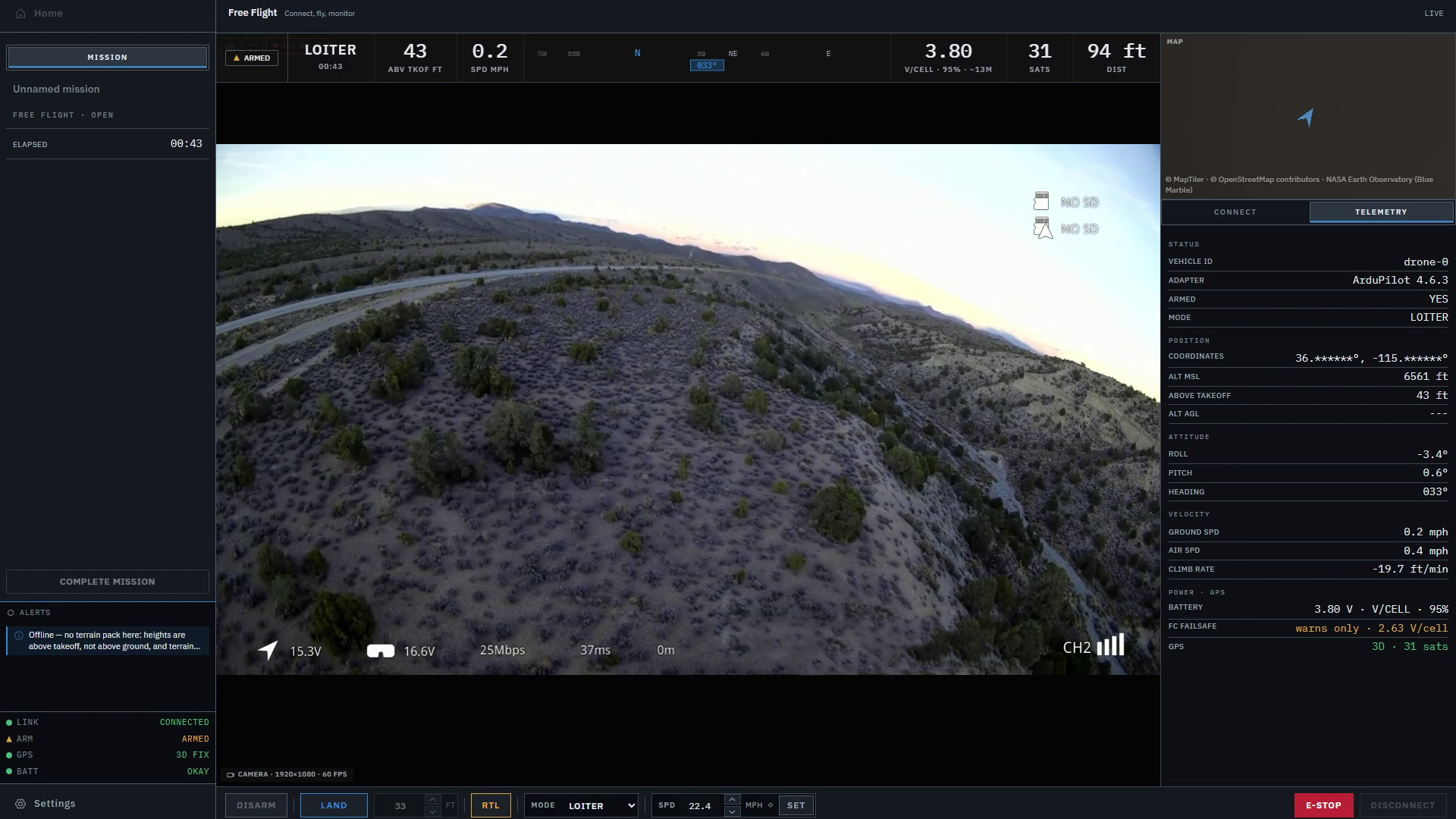
That connection between the screen and the aircraft’s behavior is part of what we’re working on with Markhor. The current workspace brings aircraft controls, telemetry and a 3D terrain view together. Markhor is in active development and is not yet available outside Lechuza.
Whatever tools you use, the useful habit is the same. Know where the recording came from, follow one question through the data and leave room for what wasn’t recorded. You don’t need to understand every message in a flight log to learn something useful from the flight.